The Quick Route
Open PDF To Images → Choose The Output → Export And Check.
Follow The Steps
- 1
Open PDF To Images
Choose PDF to images in Advanced PDF Utilities Free and select your document.
- 2
Choose The Output
Choose the pages and image output options available in the export dialog. Use a higher resolution when small text needs to remain readable.
- 3
Export And Check
Save the images to your chosen folder. Open a result and check that its edges and text are complete.
Before You Finish
An exported picture contains the visible page. It does not preserve selectable text, form fields, links or the original PDF document structure.
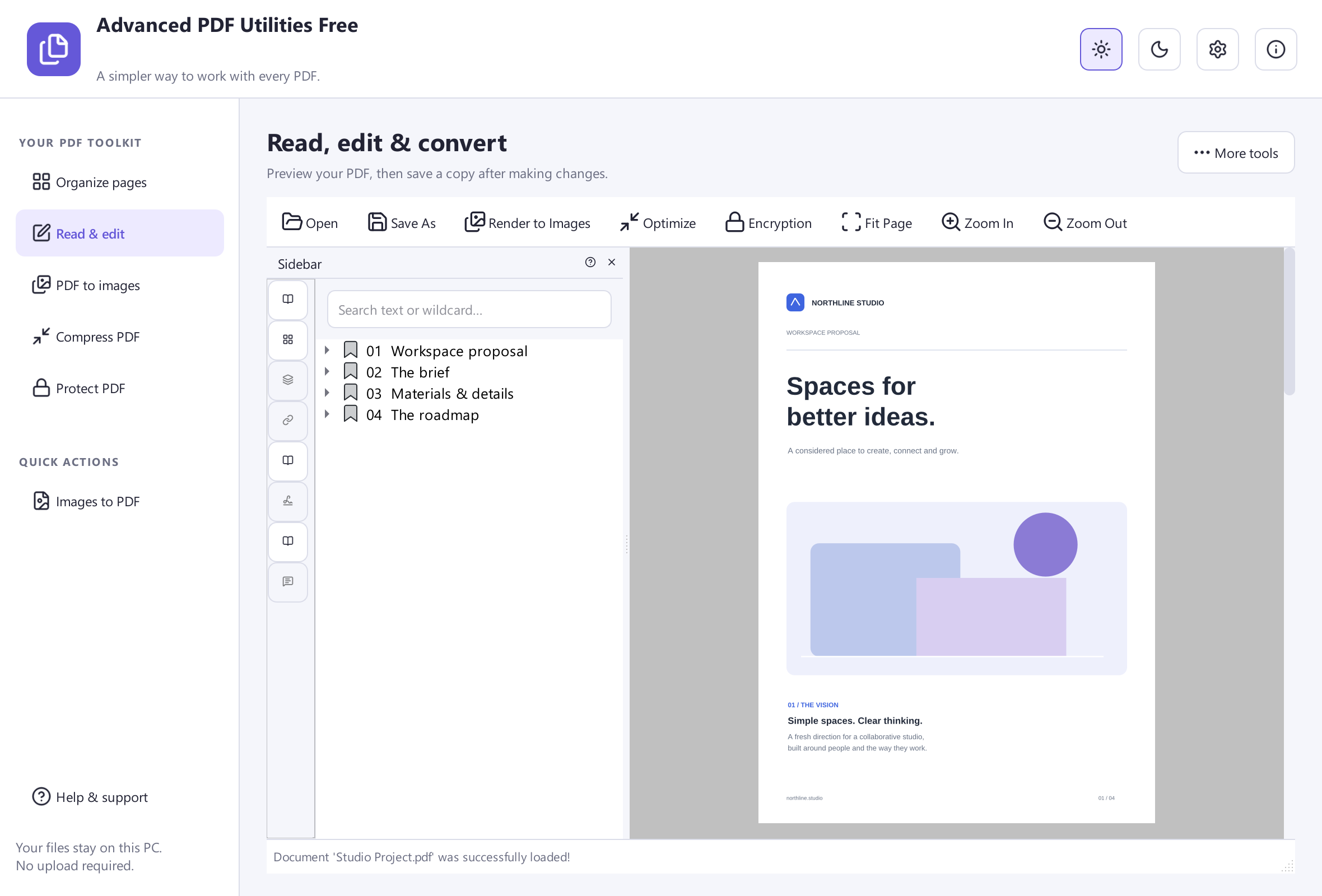 View Screenshot
Keep Your Original
Save your result with a new filename and check it before replacing or sharing a document. Use a small sample first when the source contains unfamiliar formatting.
Choose The Matching Free App
Advanced PDF Utilities Free is the tool used for this workflow. All its included features are free to use.
Download Free SoftwareSystem Requirements & File Details
Windows 10 or Windows 11, 64-bit. Required application runtimes are included with setup.
Version 8.1.0 · 33.4 MB · 33,360,272 bytes.
Setup includes an optional third-party software offer. You can decline it and still install this application.
Verify The Download
SHA-256
A6D21EF10164C15B97E18009F93CFC247CBD82E94DFD5939322A05F0B309093F