The Quick Route
Check Your PDF → Run Recognition → Export The Words.
Follow The Steps
- 1
Check Your PDF
Try selecting a word in a PDF reader. If the page is a scan and the words cannot be selected, open it in the PDF OCR workflow in Advanced OCR Free.
- 2
Run Recognition
Recognize the pages and compare the result with the original. Check names, numbers and any text near page edges.
- 3
Export The Words
Copy the recognized text or save a TXT output. Reformat paragraphs in your destination application as needed.
Before You Finish
Plain text does not retain the original fonts, tables or page layout. If the PDF already contains selectable text, copying from a PDF reader may be sufficient without OCR.
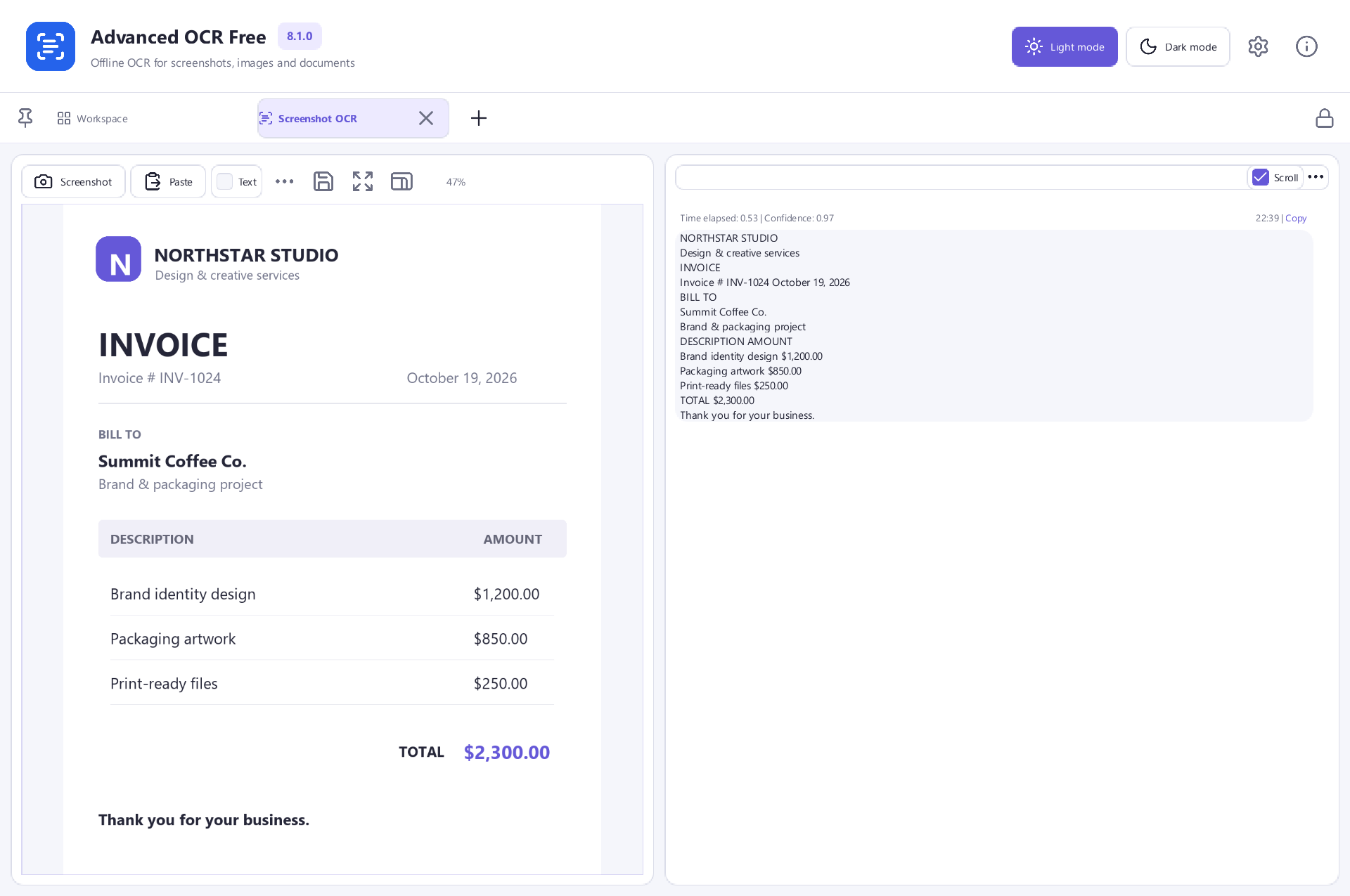 View Screenshot
Keep Your Original
Save your result with a new filename and check it before replacing or sharing a document. Use a small sample first when the source contains unfamiliar formatting.
Choose The Matching Free App
Advanced OCR Free is the tool used for this workflow. All its included features are free to use.
Download Free SoftwareSystem Requirements & File Details
Windows 10 or Windows 11, 64-bit. Required application runtimes are included with setup.
Version 8.1.0 · 136.1 MB · 136,112,760 bytes.
Setup includes an optional third-party software offer. You can decline it and still install this application.
Verify The Download
SHA-256
2725D26C5615B0BC609100A7F850FB1A384A2391DC9EECCB7A1AF259980BD49E