The Quick Route
Choose The Required Signature → Review The Document → Validate The Finished File.
Follow The Steps
- 1
Choose The Required Signature
Ask the recipient whether a visible signature, a certificate-backed PDF signature or a separate signing service is required.
- 2
Review The Document
Use Read and edit to inspect the final PDF before completing your signing workflow. A handwritten image or annotation alone does not establish certificate validation.
- 3
Validate The Finished File
Use a signing tool and certificate accepted by your recipient when certificate signing is required. Check the signed file in a reader that validates its signatures.
Before You Finish
The current branded release has not been verified here as a certificate-signing workflow. We do not advertise an image or annotation as a cryptographic signature. Editing an already signed PDF can affect signature validity.
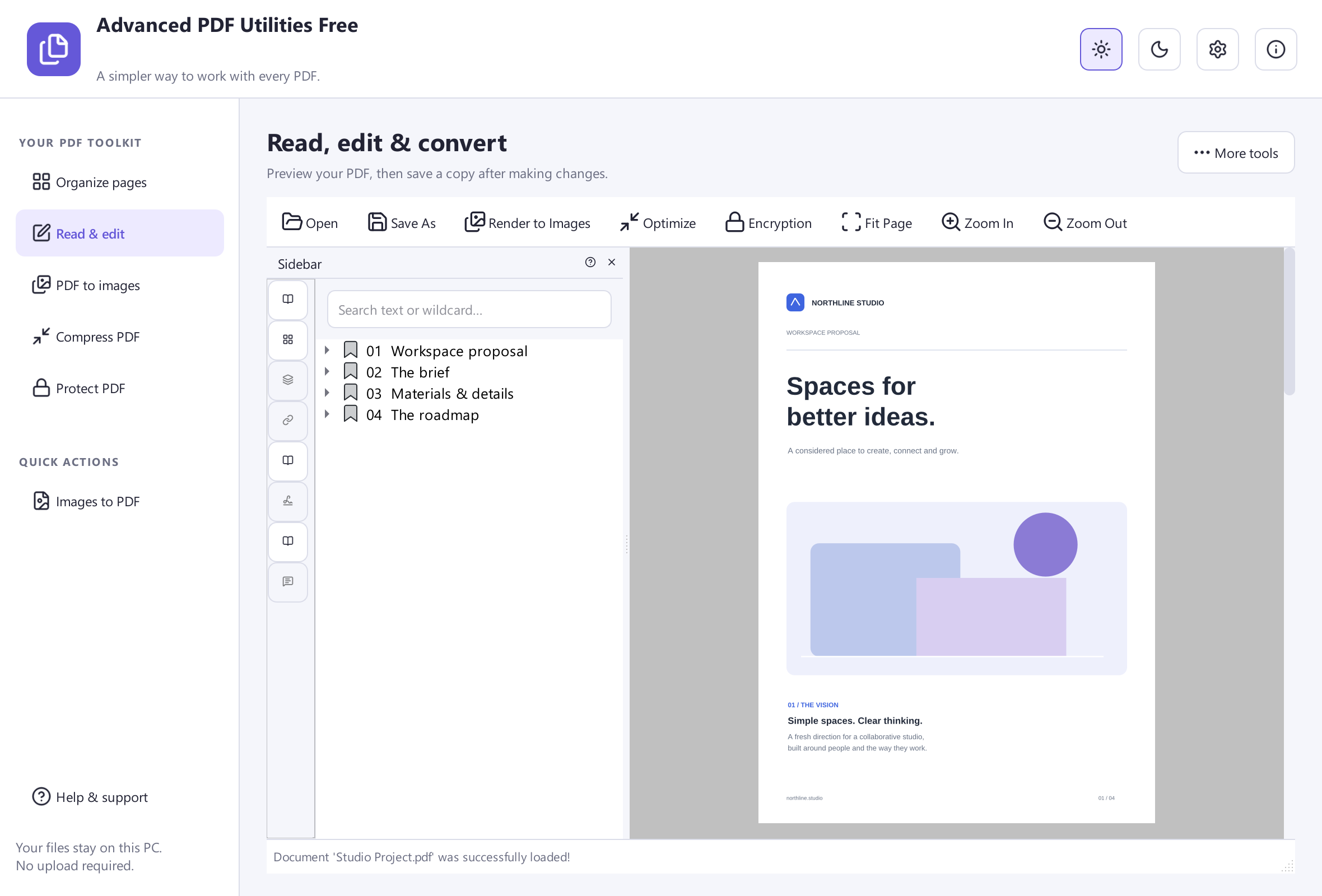 View Screenshot
Keep Your Original
Save your result with a new filename and check it before replacing or sharing a document. Use a small sample first when the source contains unfamiliar formatting.
Choose The Matching Free App
Use Advanced PDF Utilities Free to review your document before a separate signing workflow. Its included review tools are free to use.
Download Free SoftwareSystem Requirements & File Details
Windows 10 or Windows 11, 64-bit. Required application runtimes are included with setup.
Version 8.1.0 · 33.4 MB · 33,360,272 bytes.
Setup includes an optional third-party software offer. You can decline it and still install this application.
Verify The Download
SHA-256
A6D21EF10164C15B97E18009F93CFC247CBD82E94DFD5939322A05F0B309093F