The Quick Route
Add Your Images → Set The Order And Page → Save The PDF.
Follow The Steps
- 1
Add Your Images
Open Advanced JPG to PDF Free. Choose Add images or drag supported image files into the workspace.
- 2
Set The Order And Page
Drag thumbnails into order, rotate pages and choose paper size, orientation and margins. Multi-page TIFF frames become separate pages.
- 3
Save The PDF
Choose Create PDF and save the result. Open it to check page order, cropping and small text before sharing.
Before You Finish
The PDF contains your pictures. Words inside the pictures remain image content unless you add a text layer with a separate OCR workflow.
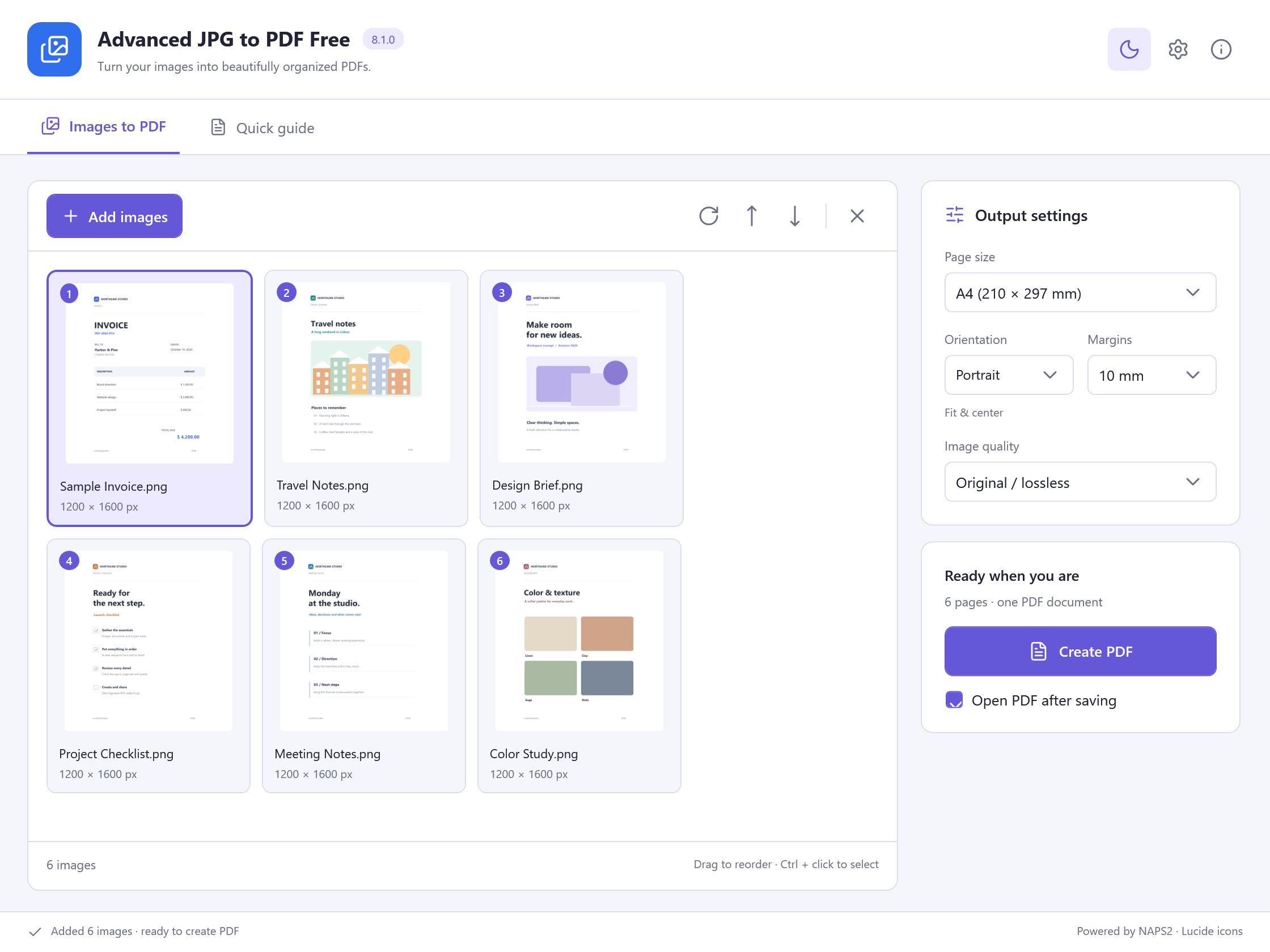 View Screenshot
Keep Your Original
Save your result with a new filename and check it before replacing or sharing a document. Use a small sample first when the source contains unfamiliar formatting.
Choose The Matching Free App
Advanced JPG to PDF Free is the tool used for this workflow. All its included features are free to use.
Download Free SoftwareSystem Requirements & File Details
Windows 10 or Windows 11, 64-bit. Required application runtimes are included with setup.
Version 8.1.0 · 91.5 MB · 91,458,288 bytes.
Setup includes an optional third-party software offer. You can decline it and still install this application.
Verify The Download
SHA-256
A90697D735B108233F8EA09FFDF3A796DBE67C6D082A2DF986EDED38701915BD