How to Check Whether a PDF Has Selectable Text
Check several pages of a PDF before running OCR. A typed cover and a scanned attachment can behave differently in the same file.
Download Advanced OCR FreeWindows installer · Download and setup details
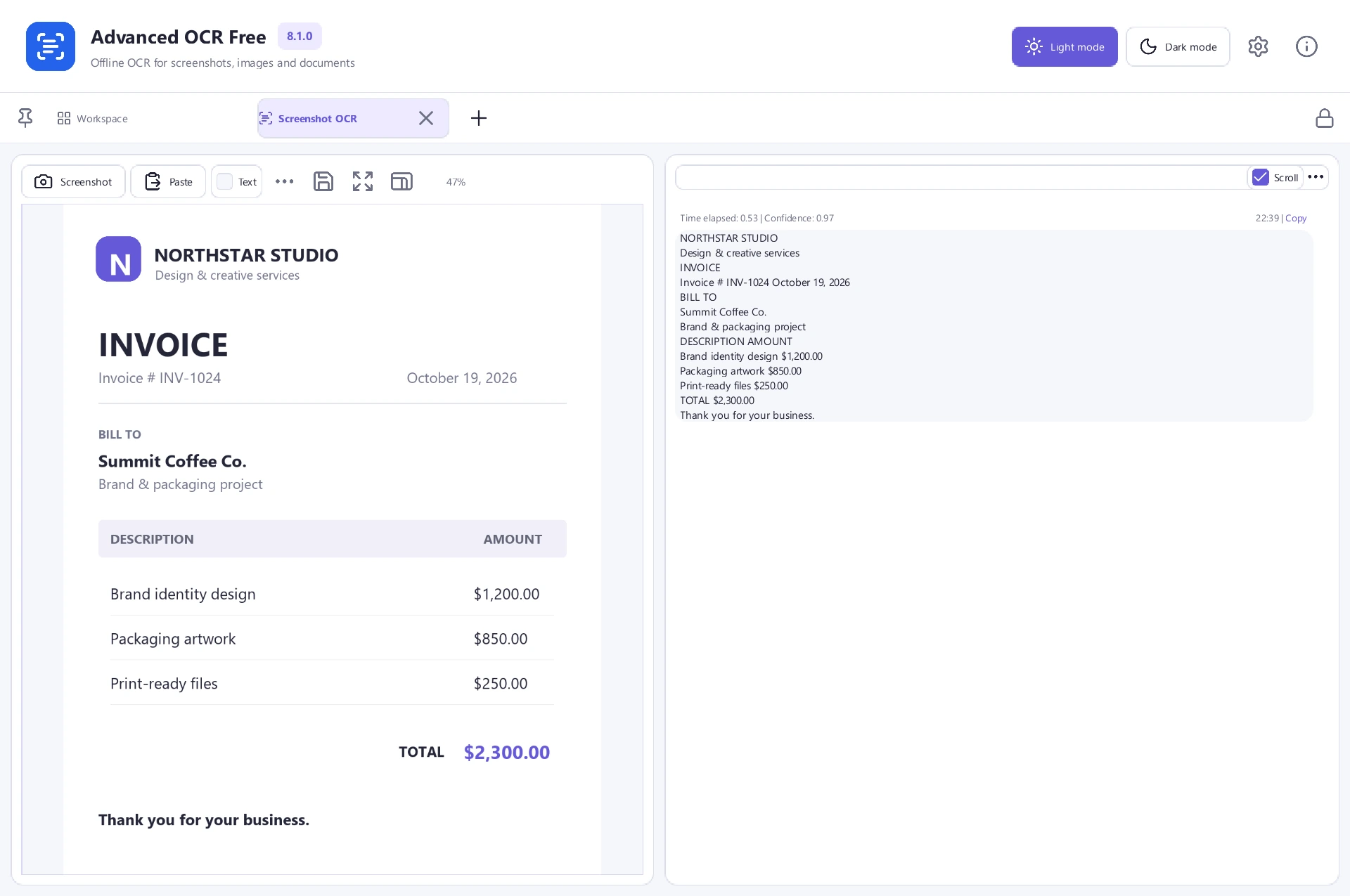
A searchable cover can hide scanned pages
A report has a digital cover, three photographed forms and an appendix. The cover is searchable, but the forms may still need recognition.
Try selecting and searching on several pages
- Open the source PDF and try selecting a complete line on the cover, an interior scan and the appendix. Copy each line into a plain-text editor and see whether it reads correctly.
- Search for a distinctive word you can see on each sample page. One match on the cover says nothing about what is available on the other pages.
- If a scan has no usable text, test OCR on a copy of that page in Advanced OCR Free. Save a separate searchable copy and repeat both checks.
Read the copied text against the scan
A highlight can appear even when underlying text is wrong. Compare a copied phrase to the page image and keep your source file for reference.