File size and quality

How to compress a PDF on Windows without avoidable quality loss

Start with structure-preserving optimization. Rasterize only when you intentionally want an image-based archive and accept the loss of searchable text and interactive document features.

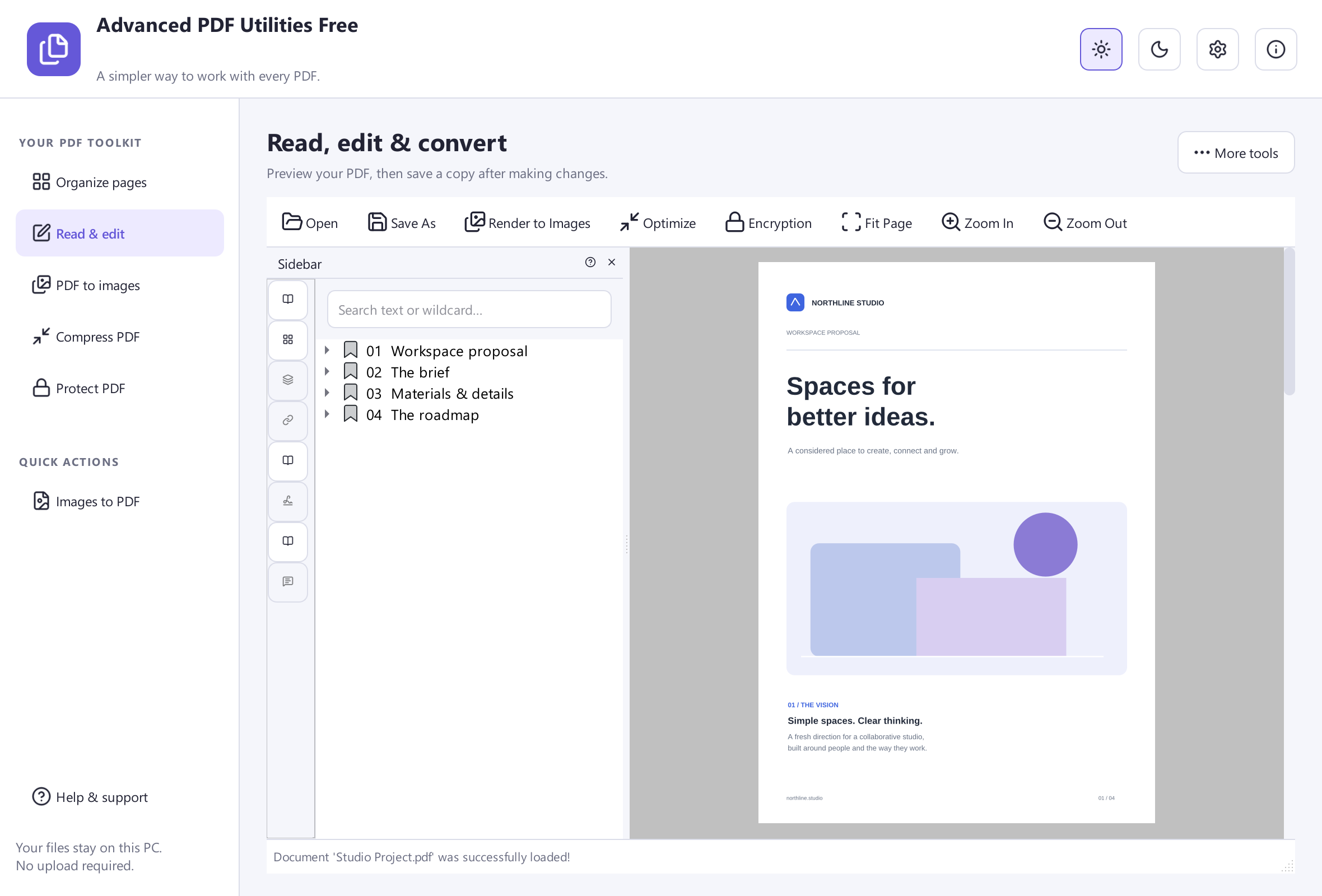
Quick answer: Open the PDF in PDFCore, choose Compress, then select Structure-preserving optimization (recommended). Save to a new filename and compare size, appearance, search, links and forms with the original. This local mode does not rebuild every page as an image.

“Smaller without quality loss” has limits

A PDF can contain text streams, vector drawings, photographs, monochrome scans, embedded fonts, forms, annotations, bookmarks, attachments and duplicate resources. Some bytes can be removed or encoded more efficiently without changing visible output. Other reductions require discarding information.

That is why a responsible compressor cannot promise a dramatic percentage for every file. A PDF that already contains optimized JPEG images and compressed object streams may shrink only slightly. A scanned PDF with oversized images may shrink substantially, but visible detail or OCR usability can be affected if those images are resampled.

PDFCore compression modes

ModeWhat it doesWhat to expect
Structure-preserving optimizationUses PDF content compression while retaining the document object modelSearchable text, links and structure can remain; reduction depends on the source
Rasterized archive — high qualityRenders every page as an image at a higher-quality archive settingVisual appearance is prioritized, but text and interactive objects become pixels
Rasterized archive — balancedRenders pages at a middle archive settingPotentially smaller, with more image trade-off
Rasterized archive — smallest sizeRenders pages at the most aggressive archive settingHighest risk to small text, line art and later reuse

Rasterized archive modes are destructive. They remove selectable text, links, form fields, bookmarks, signature objects and accessibility structure. They can also make a document harder to search, quote, remediate or validate later.

Compress a PDF safely

  1. Preserve the original. Work from a copy or save the result under a different filename.
  2. Record the baseline. Note the original byte size, page count, whether text is searchable, and any links, bookmarks, forms or signatures that matter.
  3. Choose Compress. Start with Structure-preserving optimization.
  4. Save to a new output path. Do not overwrite an approved record until the compressed result passes review.
  5. Compare the byte size. A small reduction can be the correct result for an already-efficient PDF.
  6. Verify function and appearance. Check representative text, images, line art, links, bookmarks, forms, search and copy/paste behavior.
  7. Use a raster archive only for a deliberate visual-copy use case. Read the warning, choose the least aggressive setting that meets the size target, and label the result clearly.

Find what makes the PDF large

Scanned pages and photographs

Large full-color scans are common size drivers. Rescanning at an appropriate resolution and color mode is often better than repeatedly recompressing an already-created PDF. For ordinary office text, grayscale or black-and-white at a suitable resolution can be much smaller than a full-color photo scan. Keep color when it carries meaning.

Embedded fonts

Fonts preserve typography and character mapping. Removing or subsetting them can reduce size but can also damage fidelity or text extraction. Do not treat every embedded font as waste.

Duplicate or unused resources

PDF producers can leave redundant streams and objects. Structure-preserving optimization can reduce this overhead without turning pages into pictures.

Incremental save history

Some editors append changes instead of rewriting the complete file. A clean rewrite can remove obsolete revisions, but it may invalidate a digital signature that intentionally covered an earlier byte range. Signed records require a signature-aware process.

Choose quality by the final use

Use caseRecommended approach
Emailing an ordinary reportStructure-preserving optimization; if still too large, share through an approved file service rather than destroying quality
Uploading a scanned form to a strict portalKeep the original, make a separate raster archive copy, and verify every small field after compression
Long-term searchable recordsPreserve text and structure; use an archival policy or PDF/A workflow rather than casual rasterization
Legal or digitally signed PDFDo not alter the approved original; consult the signature and records workflow
Image portfolio for screen reviewA balanced image setting may be acceptable if text search and accessibility are not required

What to verify after compression

  • File opens without a repair warning.
  • Page count and page dimensions match the intended source.
  • Small type, barcodes, diagrams and thin lines remain legible at 100% and print scale.
  • Text search and copy/paste still work when required.
  • Bookmarks, hyperlinks, form fields and annotations still behave correctly.
  • Transparency, gradients and color-critical material render acceptably.
  • Security settings and signature status are understood.
  • The byte size is below the real limit, not merely a rounded display value.

Why the output sometimes gets larger

A compression pass can add overhead when the original is already compact, when shared resources are duplicated during a rewrite, or when rasterization encodes simple vector/text pages as large images. It can also trade one kind of compression for another that is less efficient for the content. “Compressed” describes an operation, not a guaranteed size result.

If structure-preserving output is larger, keep the original. If a raster output is larger, the page resolution, color and image codec may not match the content. Do not respond by repeatedly recompressing the result; each lossy generation can accumulate artifacts.

Offline compression and privacy

Local processing is useful for confidential documents because the file is not sent to a third-party conversion service. Still protect local temporary storage, backups and synced folders. Removing document metadata is a separate task from compression, and neither operation guarantees that visible or embedded sensitive content has been removed.

Questions about PDF compression

How much smaller will my PDF become?

There is no honest universal percentage. Results depend on images, fonts, object streams, duplicate resources and whether the file was already optimized.

Does compression reduce image quality?

Structure-preserving optimization need not resample every image. Rasterized archive modes create new page images and can reduce visual detail depending on the selected setting.

Can I compress a PDF to an exact upload limit?

You can target a limit iteratively, but PDFCore 8.0.1 does not claim a verified “compress to exactly N MB” controller. Measure the final byte size and keep a safety margin for the portal.

Keep structure first

Use PDFCore’s recommended local optimization before considering a destructive image archive.

Download PDFCore